How to disable the Plex features you don't want
If you just want to watch your library and not everything Plex keeps adding, like Discover rows, streaming promos, news, and extra hubs, here's what you can switch off in Plex, and how Poptonium gives you a client where the extras are off unless you ask for them.
Short answer
The official Plex apps let you hide some hubs and rows in settings, but they're built to surface Plex's own catalog. Poptonium flips the default: it shows only the library and its owner's curation, and every extra (the popular feed, search, requests, and subtitles) is opt-in, so nothing you didn't ask for shows up.
What you can turn off in the stock Plex apps
Before switching clients, here's what the official apps let you tidy up. It helps, but only so far:
- Hide streaming & Discover rows. Settings lets you remove some of the movies & shows / Discover home hubs.
- Remove libraries from Home. Pin only the libraries you care about and hide the rest.
- Turn off notifications. Disable the promotional and "what's new" pushes.
- Skip live TV / news hubs. Hide the ones you don't subscribe to where the app allows it.
The catch: the apps are designed around Plex's own catalog, so even with hubs hidden, the layout and defaults keep pulling toward content that isn't your library. That's usually what sends people searching for how to disable it all.
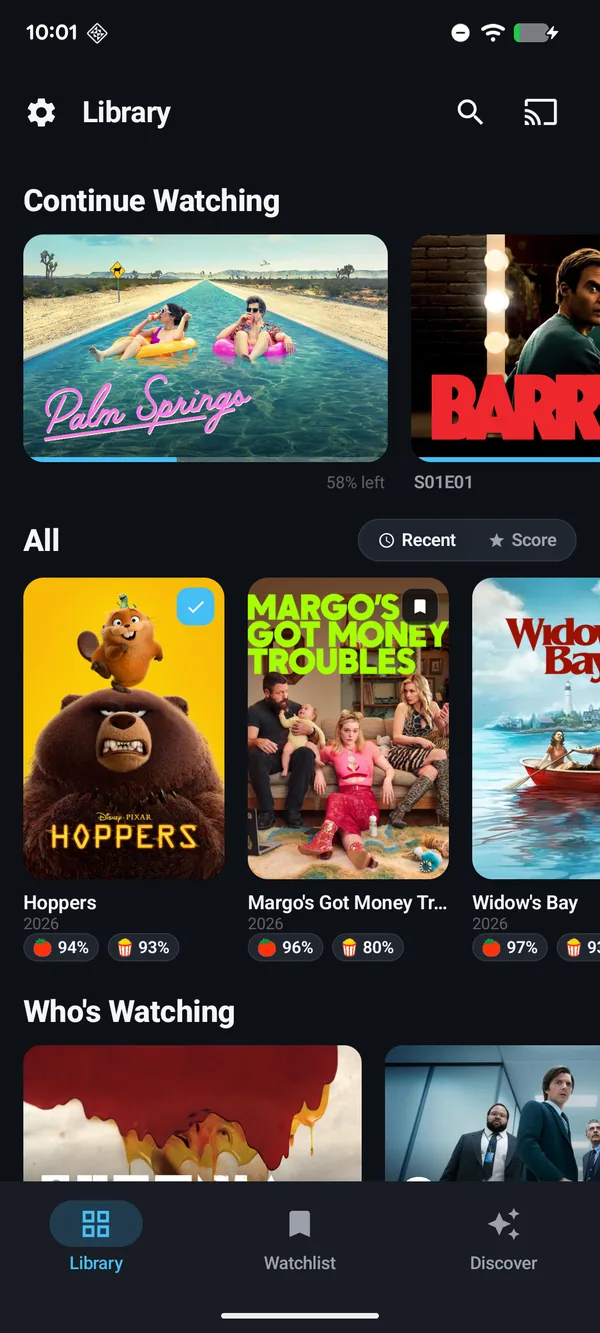
The cleaner approach: a client that's off by default
Poptonium is a native Plex client built around a simple idea: you should see your library, not a storefront. Every integration is opt-in, so a fresh install is quiet by design:
- No ads and no promoted streaming catalog pushed into your home screen.
- Owner-curated layout instead of Plex's fixed hubs, so the server owner decides what shows up.
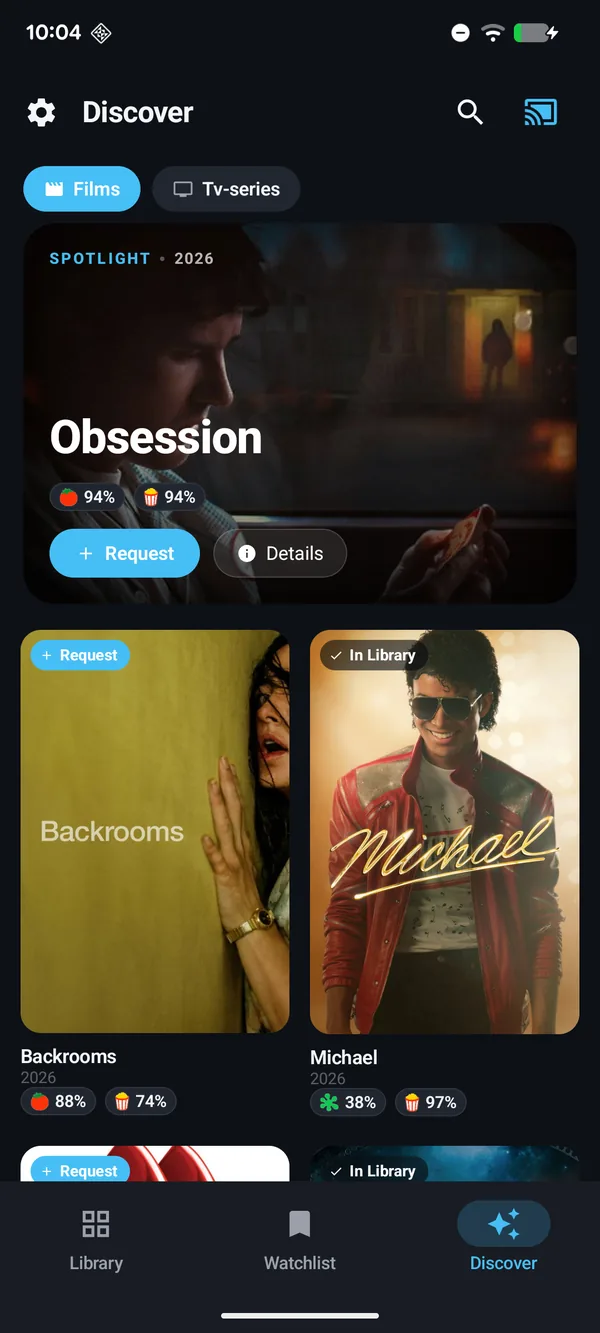
- The popular / Discover feed is optional. It only appears if the owner turns it on, and sits next to your library rather than over it.
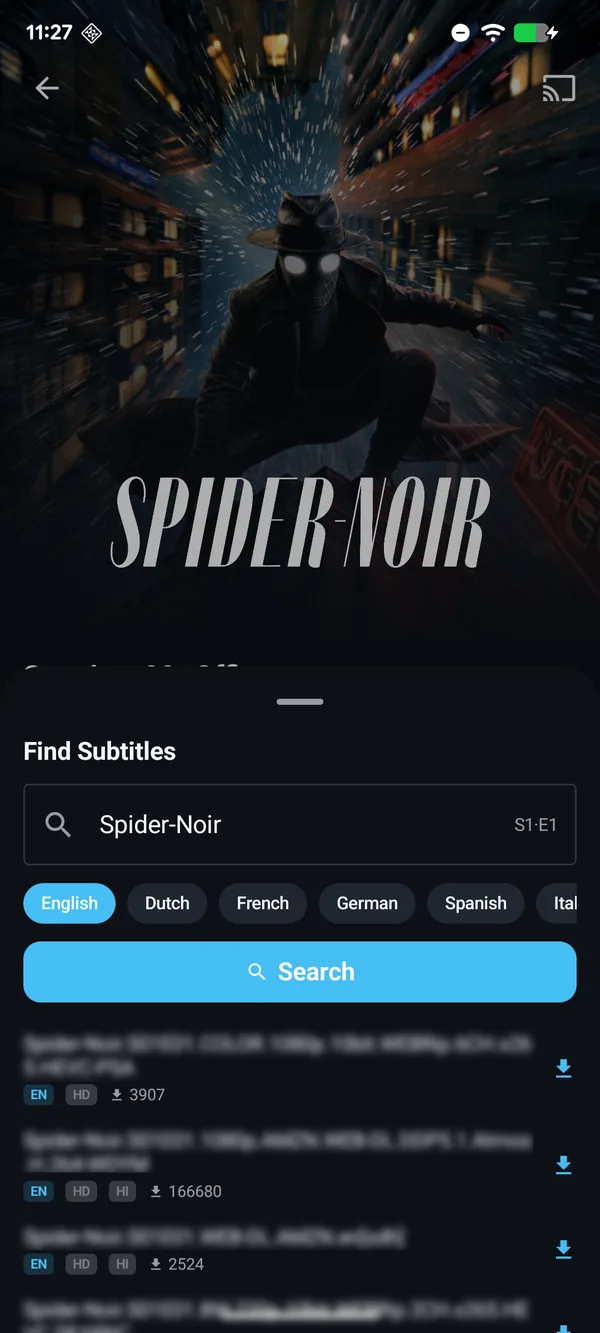
- Search, requests (via Overseerr), and subtitles are opt-in. Leave them off and they're simply not there.
- Ratings you choose: show IMDb, Rotten Tomatoes, TMDB, or Metacritic, or none.
How to get a distraction-free Plex
- Install Poptonium and sign in with Plex. It connects to any Plex Media Server you can reach and works as a plain client immediately, with no extra services required.
- Watch just your library. Out of the box you get your media and casting, with none of the streaming or Discover clutter layered on top.
- Add only what you want. If the owner runs the optional Poptonium server, they can switch on the popular feed, in-app search and requests, or subtitles, each one individually, and each one off until enabled.
- Cast and go. Any title is one tap from the TV with full Google Cast and Chromecast support.
Get a Plex client that stays out of the way
No ads and no forced streaming rows, just your library and the extras you choose to switch on.
Frequently asked questions
Can you turn off Plex features you don't want?
In the official Plex apps you can disable some things, such as hiding the Discover and streaming rows, removing libraries from home, and turning off certain notifications, but the app is built to surface Plex's own content. For a client where the extras are off by default, Poptonium shows only your library and makes every integration opt-in.
How do I hide the Plex Discover and streaming rows?
The stock apps let you hide some home hubs in settings, but the layout still centers on Plex's catalog. Poptonium instead shows the owner-curated library first, and the popular feed and other extras only appear if the owner turns them on.
Does Poptonium show ads or streaming content I didn't ask for?
No. Poptonium is a client for your own Plex Media Server. There are no ads, and features like the popular feed, in-app search and requests, and subtitles are optional and off unless the server owner enables them.
Is the Poptonium server required to remove the clutter?
No. The app works as a plain Plex client on its own. The optional self-hosted server only adds features (the owner-curated layout, ratings, popular feed, search, and subtitles), each of which is opt-in.