How to cast Plex to a Chromecast from your iPhone or Android
Want to send a movie or show from Plex on your phone straight to the TV? Here's how Google Cast works with a Plex Media Server, how to fix a missing Cast button, and how Poptonium makes casting a first-class part of the app on both iOS and Android.
Short answer
Open a Plex client that supports Google Cast (like Poptonium), make sure your phone and Chromecast are on the same Wi-Fi, open a title, tap the Cast icon, and pick your TV. The show plays on the Chromecast and your phone becomes the remote.
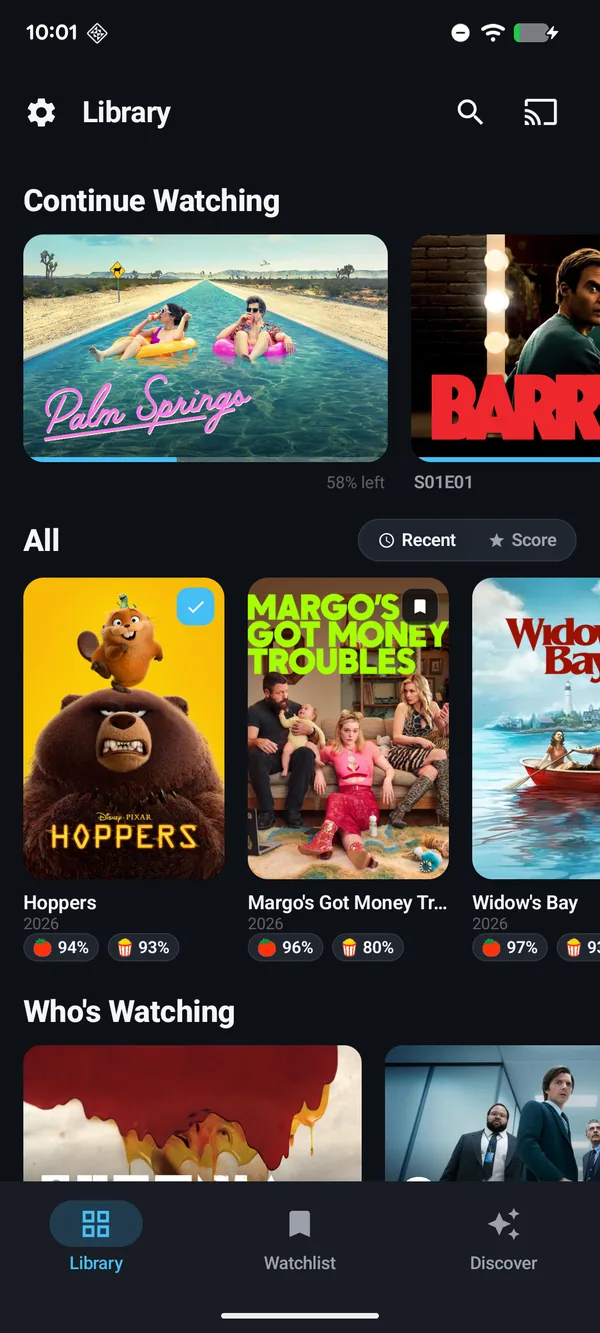
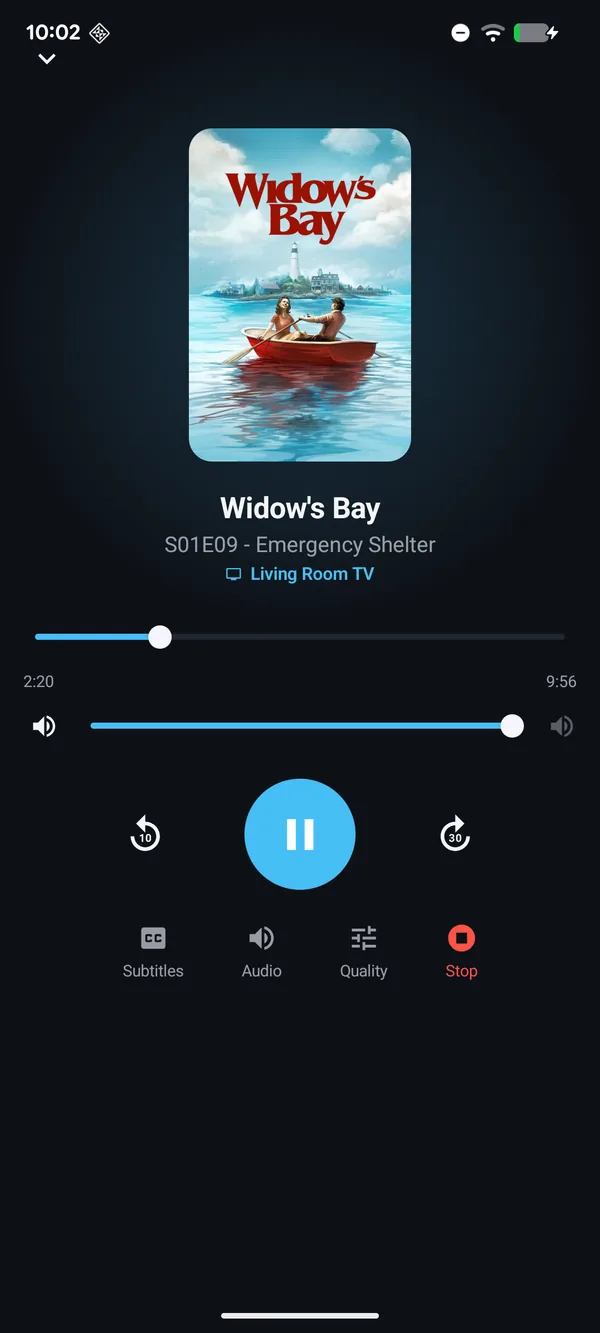
Step by step: cast Plex to Chromecast or Google TV
- Get on the same Wi-Fi. Your phone and your Chromecast, Google TV, or TV with Cast built in need to be on the same network. Casting is a local-network handshake, so this is the single most important step.
- Open your Plex client and sign in. Launch Poptonium and sign in with your Plex account. Your servers (yours or one a friend shares) show up automatically.
- Open the title you want. Browse the library and tap the movie or episode you'd like to watch.
- Tap the Cast button. Tap the Google Cast icon and choose your Chromecast or Google TV from the list of nearby devices.
- Play and control from your phone. Playback starts on the TV. Pause, seek, jump episodes, and change the volume right from your phone, with no separate remote needed.
Cast button not showing? Fix it fast
If the Cast icon is missing or your TV never appears in the list, it's almost always a network issue rather than the app. Run through this checklist:
- Phone and Chromecast are on the same Wi-Fi network. Watch out for separate 2.4 GHz / 5 GHz or "guest" networks.
- Any VPN is turned off on your phone, since VPNs route traffic away from your local network and hide the Chromecast.
- Client isolation / AP isolation is disabled on your router, so devices can see each other.
- The Chromecast is awake and on the home screen. Reboot it if it's been up for a while.
- Local network permission is allowed for the app in your phone's settings (iOS asks for this the first time).
Why casting feels better in Poptonium
Poptonium is a fast, native Plex client built for iPhone and Android, with full Google Cast and Chromecast support for everyone who uses it, not just the server owner. Any title in the library is one tap away from the TV, and your phone stays the remote for the whole session.
Because Poptonium connects to any Plex Media Server you can reach, you keep your own media and your own account. And when the server owner has set up the optional Poptonium server, the library you're casting from is also cleanly laid out with curated rows and the ratings that matter, so finding something to cast is quicker too.
Get Poptonium and cast Plex to any TV
Full Google Cast and Chromecast support on iPhone and Android, connected to your own Plex server.
Frequently asked questions
Can I cast Plex to a Chromecast from an iPhone?
Yes. With a Plex client that supports Google Cast, such as Poptonium, you tap the Cast button on any title and pick your Chromecast or Google TV. Your iPhone becomes the remote while the TV handles playback.
Why is the Cast button not showing up?
The usual causes are the phone and Chromecast being on different Wi-Fi networks (or different bands / a guest network), a VPN isolating your devices, or client isolation enabled on the router. Put both devices on the same network, turn off the VPN, and reopen the app.
Do I need a Plex Pass to cast to Chromecast?
Casting relies on Google Cast rather than a specific subscription. Poptonium provides full Google Cast and Chromecast support and connects to any Plex Media Server you can reach, your own or one shared with you.
Does casting work on both iOS and Android?
Yes. Poptonium is a native app for both iPhone and Android, and Google Cast and Chromecast support is built in on both platforms.